
FAT32, exFAT and microSD formatting
FAT32 or exFAT? Format a microSD Card for Your Device
Published
Start with the device. Use the file system it supports. Do not choose FAT32 or exFAT by card capacity alone.
Device hardware matters too. Support can depend on the device-side processor or controller, its file-system software and firmware. Here, “controller” means the device platform—not the controller inside the microSD card.
Check the device manual and platform documentation. Back up needed files. Use the device’s format function when required. Then test the exact card with the exact hardware, firmware and workload.
Do not format yet if any of these apply
Formatting changes the file system and removes normal access to existing files. Stop if you still need to protect data, evidence or the device's original state.
- Important files do not have a verified backup.
- The card may be needed for supplier review, failure analysis or a Return Merchandise Authorization (RMA) case.
- The card may contain customer files, personal data or confidential material, and no handling plan has been approved.
- The card is encrypted, adopted as internal storage or bound to its original device.
- The card disconnects repeatedly, becomes unusually hot or has visible physical damage.
- The same problem appears on several cards or field devices, and you have not recorded which units are affected.
- You still do not know which card type, capacity, file system or format method the device supports.
- A previous format failed, the card became read-only, or files returned after deletion.
Keep the card, its label and its sample or lot ID unchanged. Follow the microSD troubleshooting and RMA guide before doing anything destructive.
FAT32 and exFAT support depends on hardware, software and firmware
Check the device manual and platform documentation. Seeing an option on your computer does not prove the target device can use it.
Show less
A file system is how the device organizes files on the card. FAT stands for File Allocation Table. exFAT means Extensible File Allocation Table. In this guide, “host” means the camera, recorder, player or other target device that reads and writes the card. Under the SD standard, SD High Capacity (SDHC) cards above 2GB and up to 32GB use FAT32. SD eXtended Capacity (SDXC) cards above 32GB and up to 2TB use exFAT. This mapping is a starting point, not a compatibility promise.
| Question | FAT32 | exFAT | What the project team should decide |
|---|---|---|---|
| Where does it sit in the SD standard? | Standard file system for SDHC cards above 2GB and up to 32GB. | Standard file system for SDXC cards above 32GB and up to 2TB. | Confirm the card logo or family and the host’s documented support. |
| Can capacity alone decide? | No. A 64GB SDXC card should use FAT32 only when the host explicitly requires it. | No. exFAT on an SDHC card is not the standard combination and needs explicit host support. | Follow the device or controller documentation. Test the exact card, firmware, files and workload. |
| What kind of file use does it support? | Use it when the host is designed for FAT32. A single file is limited to roughly 4 GiB. | It supports much larger single files and storage devices, but only when the host supports exFAT. | Check whether the device creates large files or divides recordings into smaller files. |
| Device platform | Support depends on the device's file-system software and firmware. | Some platforms support exFAT only when the feature is enabled in the software build. | Check the device-side processor/controller, file-system software, firmware and device specification. |
| Does a successful computer format prove compatibility? | No. | No. | Validate recognition, file access, restart and the real workload in the target host. |
| Can the allocation unit be changed? | A tool may offer choices. | A tool may offer choices. | Use the approved or default value unless the device maker or project specification requires another value. Record and test any change. |
| Does choosing this file system prove card health? | No. | No. | File-system preparation and card/device validation are separate decisions. |
In an embedded product, support can depend on the device-side processor or controller, its file-system software and the firmware build. The hardware may communicate with the card even when the software cannot read its file system.
Formatting an SDXC card as FAT32 does not turn it into an SDHC card or prove that it will work in an SDHC-only device. Options shown by a computer are not proof of device support.
An allocation unit, also called a cluster, is the smallest block of storage assigned to a file. Use the default value unless the device maker or project specification says otherwise. A faster result on one computer is not enough.
Apply it to industrial and embedded devices
Choose where and how to format the card
Follow the device manual. Use a computer only when the project allows it. Keep any card with important data or failure evidence out of this workflow.
Show less
| Situation | Recommended path | What it does not prove |
|---|---|---|
| The device manual requires formatting in the host | Back up needed data, insert the identified sample as directed, and use the host’s own format function. | That every card with the same capacity or label will work. |
| Computer-side preparation is allowed | Use an approved SD-compliant process. The SD Association recommends its SD Memory Card Formatter for computer-side preparation of SD cards. | That the target host supports the card, capacity, file system or folder structure. |
| The project needs preloaded files | Approve the source files, authorization, folder structure, naming rules and version before copying. Prepare a controlled sample, then test it in the target host. | That one readable sample proves the repeat-production process. |
| The card contains important data or incident evidence | Do not format it. Preserve the sample and follow the troubleshooting or authorized data-handling path. | Any recovery or RMA outcome. |
| Formatting fails, repeats, becomes read-only or files return | Stop repeated attempts. Record the tool, option, message, host, reader and card identity. Route the case for controlled troubleshooting. | That a different tool or file system is a safe fix. |
| The goal is secure data disposal | Use the organization’s approved data-sanitization policy and tool. Keep that decision separate from ordinary card preparation. | That a normal format option meets a legal or contractual sanitization standard. |
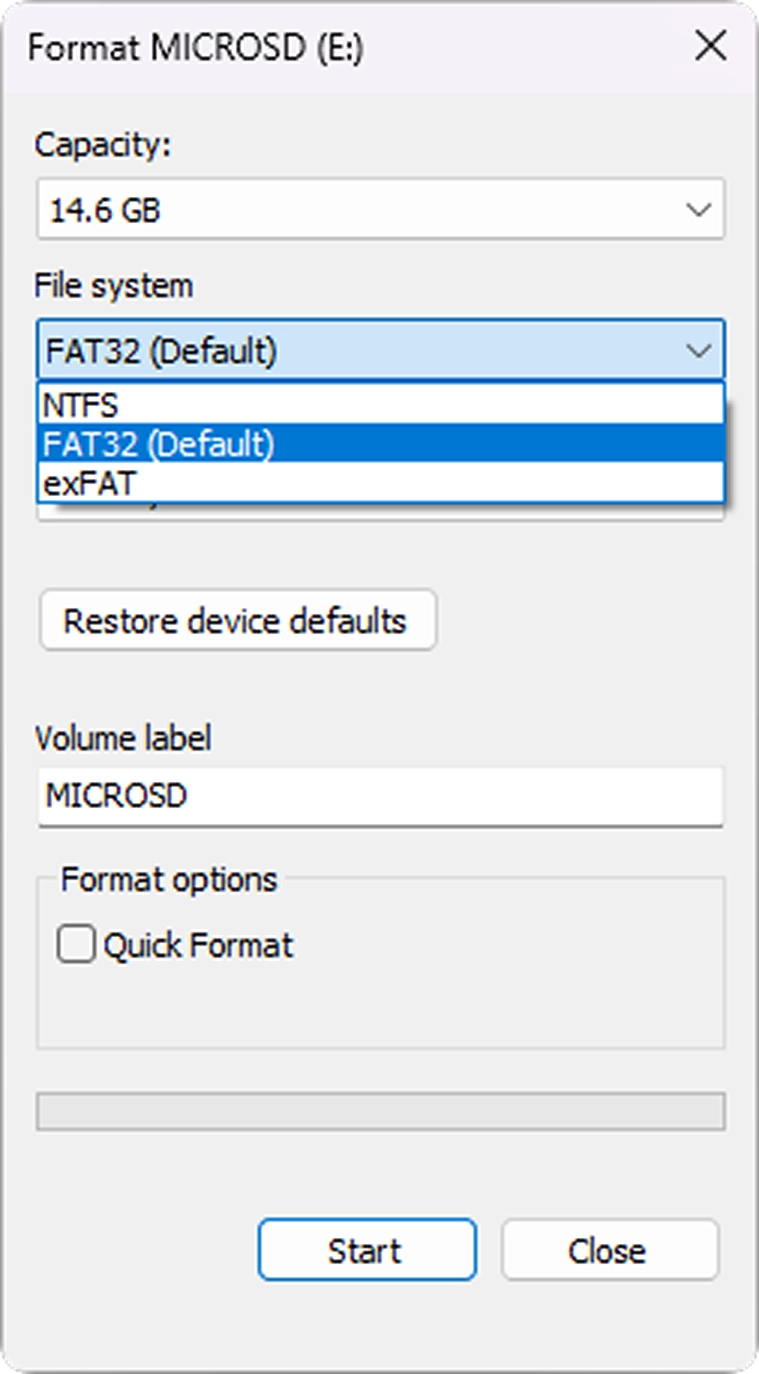
Two choices in the Windows Format dialog
The file-system menu and the Quick Format checkbox answer different questions.
- 1. File systemWindows shows FAT32 and exFAT here. Choose the one required by the target device, platform and firmware—not simply the one shown on the computer.
- 2. Format methodSelect Quick Format for the Windows quick method. Clear it for the Windows non-quick or full method.
This Windows example does not prove device compatibility, card health or secure data erasure. It is not the same interface or terminology as SD Memory Card Formatter.
Quick format and Overwrite format do different things
Record the tool, version and exact option. Neither option proves that the card is healthy or compatible with the device.
Show less
Quick format resets the file-system information and removes the file and folder entries used for normal access. It does not overwrite the existing data area. This is not a promise that data can be recovered or securely erased.
Overwrite format resets the file-system information and writes across the user-data area. It takes longer. It does not test endurance, repair the card or prove device compatibility.
Names such as ‘Full format’ and ‘Regular format’ can mean different things in different tools. Record the formatter, version and exact option. Do not treat the labels as equivalent.
Neither option tells you the root cause of a problem, the card's remaining life or whether it is ready for production.
Prepare one test card in a controlled way
Identify the card and device. Protect the data. Use one approved method. Keep a record another team member can repeat.
Show less
- 01
Define the purpose. Is this a new sample, an erasable test card, a card with preloaded files or a process for production? Use a separate workflow for failure diagnosis or data recovery.
- 02
Identify the device and card. Record the device model, hardware revision, controller platform if known, and firmware. Add the exact card part number or configuration, SDHC or SDXC type, capacity, sample or lot ID, and any reader or adapter.
- 03
Check documented support. Read the device manual or support matrix. Confirm the supported card type, capacity and file system. Check whether formatting must happen in the device or on a computer. Also check any format requirements stated for the controller platform and firmware.
- 04
Protect data and authorization. Make a verified copy of any files that must be kept. Confirm that the responsible team may erase the card and handle any content on it. Do not use customer files as test material without authorization.
- 05
Choose one approved format method. Use the host formatter when the device maker requires it. If computer-side preparation is allowed, use the approved SD-compliant method. Record the tool and version.
- 06
Keep approved settings. Use the default partition and allocation-unit settings unless the device or project specification requires something else. Change one variable at a time when testing.
- 07
Format one identified sample. Confirm the correct drive before starting. Keep the computer or host on stable power. Do not remove the card or interrupt the process. Record the selected option and the result.
- 08
Prepare project files when required. For audio, educational or other preloaded-content projects, use an authorized master. Record the file count, folder structure, naming rules and version. Keep this step separate from the format record.
- 09
Test it in the device. Formatting only prepares the card. Insert it into the exact device and firmware, then run the checks below.
- 10
Write down the repeatable process. If the card passes, record the approved card configuration, formatter, version, settings, content master and test result. Also list every change that requires another test, such as firmware, card configuration, tool or folder layout.
Apply this workflow to audio and educational devices
Test more than card recognition
Seeing the card is only the first check. Test the file operations and workload your device must handle.
Show less
- The device recognizes the card after insertion using the documented power state.
- The card remains recognized after a normal restart or power cycle.
- The host reports the expected card family and usable space without an unexplained error.
- The device can create, close, read and delete test files on an expendable sample.
- Required file names, folder levels, file types and content counts work as intended.
- Preloaded audio, educational or device content opens and plays correctly where applicable.
- The target application runs with the planned settings and workload.
- A recorder closes files correctly and continues through the required recording cycle.
- If repeated overwriting matters, a test sample is filled and checked under the planned overwrite settings.
- Required files remain readable after the approved restart and removal procedure.
- Device messages, logs and timestamps are captured.
- More than one controlled sample is tested when project risk requires it.
- The result is compared with written acceptance criteria, not only “the card appeared.”
This checklist is for purchasing and device integration. It is not a formal reliability test. Choose the sample count, test time, temperature, power-loss cases and pass/fail rules for the device and project risk.
Keep a record someone else can repeat
A pass is useful only when the team can identify the card, device, format method and workload that were tested.
Show less
- Project and test owner.
- Date, time and time zone.
- Device model, hardware revision, controller platform if known, and firmware.
- Card configuration or part number, card family, capacity and sample or lot IDs.
- Reader or adapter used for computer-side preparation.
- File system.
- Formatter name and version.
- Quick, Overwrite or host-specific option.
- Default or custom allocation setting, with the reason for any custom value.
- Content master, file count, folders and naming rules where applicable.
- Intended workload and device settings.
- Number of samples and test duration.
- Acceptance criteria.
- Result for each sample.
- Messages, screenshots, logs and anomalies.
- Approval decision and known limits.
- Changes that require revalidation.
Review configuration control and traceability
What formatting does not prove
Formatting prepares the file system. It does not prove compatibility, card health or the right maintenance schedule.
Show less
- A computer can format the card, so the target device must support it.
- Changing an SDXC card to FAT32 makes it equivalent to an SDHC card.
- Card capacity alone tells us whether to use FAT32 or exFAT.
- A custom allocation unit is better because one computer test was faster.
- Quick format securely erases the previous data.
- Overwrite format proves the card is healthy or high endurance.
- Repeated formatting is a safe way to diagnose a card that is not recognized.
- One successful sample is enough for production approval.
- Formatting resets the card’s service life.
- Every device should use the same periodic formatting schedule.
There is no single formatting schedule for every device and workload. Follow the device maker's instructions and your maintenance plan. Repeated recognition, formatting, read-only or recording errors need investigation. Do not hide the problem by formatting again.
Common microSD formatting questions
Use the device manual and an identified test card before turning one format result into a project decision.
Should every new microSD card be formatted before use?
No universal rule applies. Many new cards are supplied with a standard file system, while some devices require formatting in the host. Follow the target device manual and the approved project process.
Can a 64GB SDXC card use FAT32 when a device requires it?
Yes, but only when the device or controller documentation explicitly requires FAT32. A 64GB card is still SDXC. Rufus can create Large FAT32 on Windows, but a completed format does not prove the host supports the card. SD Memory Card Formatter follows the SD standard and is not a tool for forcing FAT32 onto an SDXC card. Back up needed data. Then test the exact card, firmware and workload.
Can an SDHC card up to 32GB use exFAT?
A formatting tool may allow it, but exFAT is not the standard file system for SDHC. Use it only when the target device explicitly supports it. Some older or embedded devices do not recognize exFAT. Support depends on the controller, file-system software and firmware, not only the age of the device.
Which allocation unit should we choose?
Use the approved or default value unless the device maker or project specification requires another value. If a custom value is required, record it and test the real file pattern and workload.
Does Quick format erase the old data securely?
No. Quick format initializes file-system parameters and directory entries, but it does not overwrite the existing file-data area. This guide makes no secure-erasure or recovery claim.
Does formatting fix a card that is not recognized?
Not necessarily. The symptom may involve the host, slot, reader, adapter, supported capacity, firmware, encryption, file system or card. Do not format while important data or failure evidence may still be needed.
How often should a device reformat its card?
There is no universal interval. Follow the device maker’s instructions and the project’s field-care plan. Formatting is not a substitute for backups, replacement planning or diagnosis of recurring errors.
Does a successful format prove that the card is ready for production?
No. It proves only that the selected tool completed that operation. Production approval still needs the exact card configuration, host, firmware, workload, samples and acceptance criteria.
Can the device controller determine whether we need FAT32 or exFAT?
It can be part of the answer, but the controller chip alone is not enough. Support also depends on the device's file-system software and firmware build. Check the platform documentation and test the exact device. Do not decide from card capacity alone.
What this guide does not cover
- It does not recover data or promise that data can be recovered.
- It does not repair a damaged card or file system.
- It is not a secure-data-erasure standard.
- It is not a compatibility matrix for YOULEN or any device brand.
- It does not provide a universal capacity, allocation-unit or formatting schedule.
- It does not promise that formatting will fix recognition, corruption, read-only or recording problems.
- It does not state service life, endurance, temperature, flash-memory type, controller or performance for a YOULEN card.
- It does not replace the device manual, formatter instructions or an agreed test plan.
- It does not authorize copying or handling customer content.
- It does not set warranty, return, replacement or RMA terms.
- Final approval requires the exact host, firmware, card configuration, workload and acceptance criteria.
Editorial transparency
How this guide uses sources and evidence
This guide uses public SD Association material for the SD card-family and file-system mapping, formatting preparation and Quick/Overwrite behavior. Microsoft’s exFAT specification supports the description of exFAT as FAT32’s successor for larger files and storage devices.
These sources do not prove compatibility, endurance, performance, recovery or service life for a YOULEN card or any target device. The device manual and the project’s validation record remain the controlling inputs.
Device-platform support can vary with software and firmware configuration. Espressif's ESP-IDF documentation, for example, says that exFAT support is optional and is not enabled by default. This example does not establish support for any other controller or device.
Rufus documents its Large FAT32 option for drives above 32GB. That tool capability does not change the SD card family or prove that a target device supports the result.
Prepared by Shenzhen Youlen Electronics Co., Ltd. (YOULEN).
SD Association: Capacity and FAT32/exFAT mapping SD Association: SD Memory Card Formatter SD Association: Formatter FAQ Microsoft: exFAT file-system specification Microsoft: FAT32 and exFAT file-size limits Espressif: FAT file-system support and optional exFAT support Rufus: Large FAT32 formatting